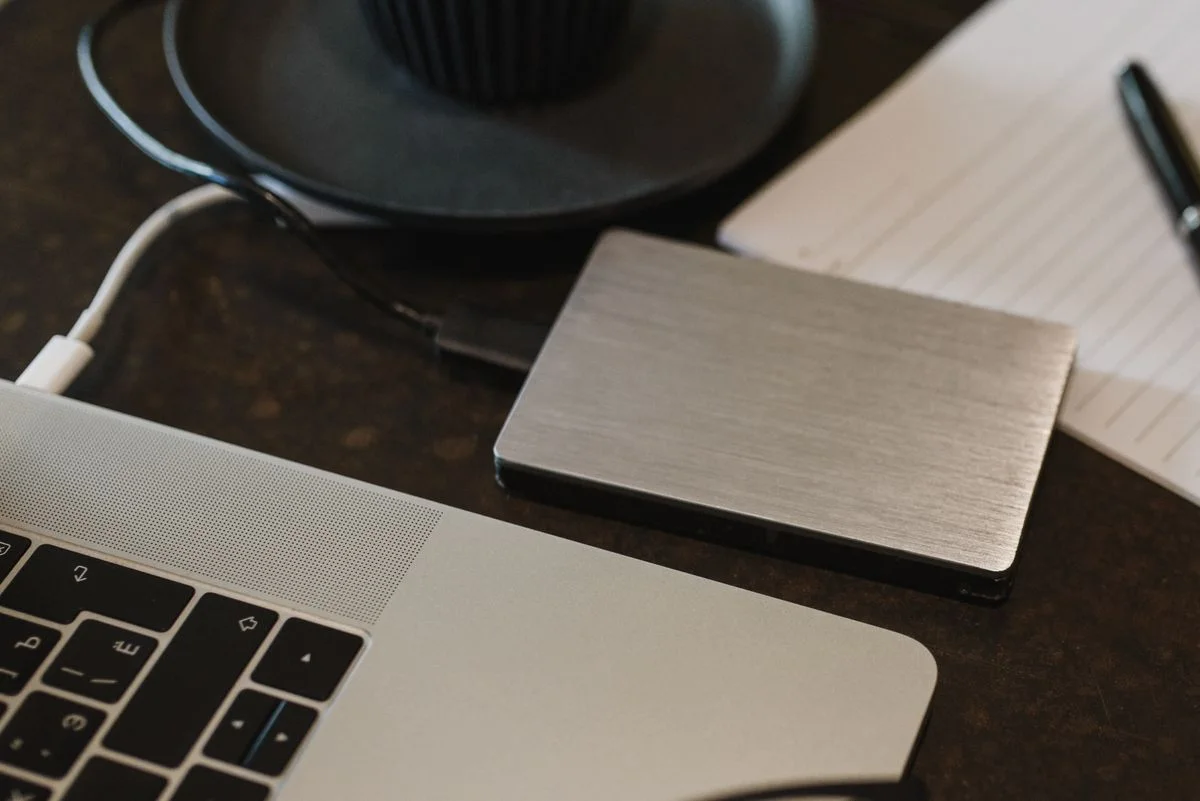
An external drive becomes useful backup equipment only when it is part of a routine you can repeat and restore from. Buying more storage does not automatically protect files that never reach it. Start by identifying the documents, photos and other data you would need to recover, then check the backup tools available for your computer. A straightforward drive that fits the connection and remains easy to use can be a better purchase than a faster or larger model left in its packaging after the first file transfer.
Define the files and backup method
List the data that needs protection and where it is currently stored. Check the operating system's supported backup methods rather than assuming a manual copy is the only option. Microsoft describes File History as a way to save versions of personal files to an external drive or network location. Read the actual feature setup and scope for your system. Confirm that the files you care about are included, especially if they live outside familiar default folders or on another drive.
Choose capacity for versions and growth
Compare the current file total with the backup method's storage requirements and how much new material you expect to add. Versioned backups can need more room than a single copy of today's files. Do not choose capacity solely by a large number if the drive's connection, format or operating-system support is unsuitable. Look at the maker's instructions for initialization and supported file systems. A drive shared among computers may need a different plan from one dedicated to a single machine's backup feature.
Check the connection and physical routine
Verify the ports, supplied cable and any adapter requirements. A drive's advertised speed may depend on a supported connection that your computer does not provide. For routine documents, manageable handling may matter more than maximum transfer performance. Choose a place where the drive can operate within its instructions without being pulled by the cable or knocked from the desk. If you disconnect it between backups, follow the operating system's removal guidance and keep its cable with it.
Verify that recovery works
After setting up the routine, use the backup tool to restore a small nonessential test file to a suitable location and confirm it opens. Check that later scheduled or manual backups actually run rather than assuming the initial setup remains active forever. Keep more than one suitable copy of irreplaceable information when your backup plan requires protection from loss of the computer and drive together. Read encryption and password requirements carefully so the backup is not inaccessible when you need it.
THE USEFUL TAKEAWAY
Choose an external drive around a backup method you will use consistently. Adequate capacity and a suitable connection matter, but the decisive check is whether the files are included and can be restored. Build a simple recurring routine and verify it occasionally, rather than treating the drive purchase itself as completed protection.
Further information
Manufacturer and official references for the details discussed. Check instructions for the exact product you are considering.